
Sometimes people who work with doctors in specialty training will be asked to complete an assessment on a trainee.
It may be that the trainee uses FOM Portfolio Builder to request an assessment and the assessor receives an email requesting they complete the assessment form. If this is the case the assessor simply follows the instructions on the email and the subsequent screens.
Those who supervise a trainee in addition to an email will get a notification on the dashboard of their account. Supervisors may wish to read our article called Complete a WBA on a Trainee you Supervise for more information.
If you have not received an email asking you to complete and assessment and you do not supervise a trainee, you can still submit an assessment on a trainee from the FOM Portfolio Builder homepage. Here's how:
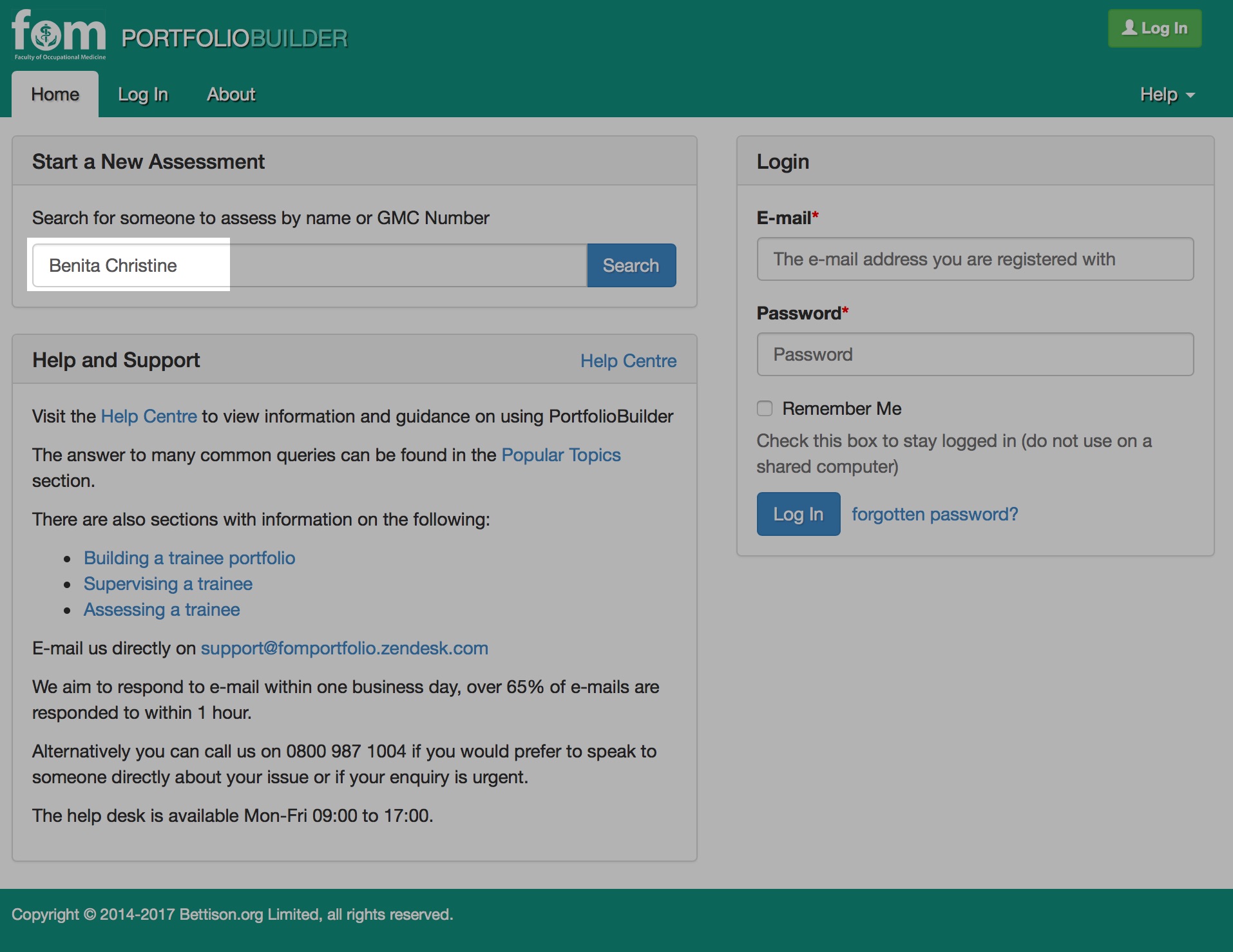
Step 1: Go to the FOM Portfolio Builder Homepage and enter the details of the trainee you wish to assess in the section 'Start a New Assessment'.
A trainee can be searched for by their name or GMC number.
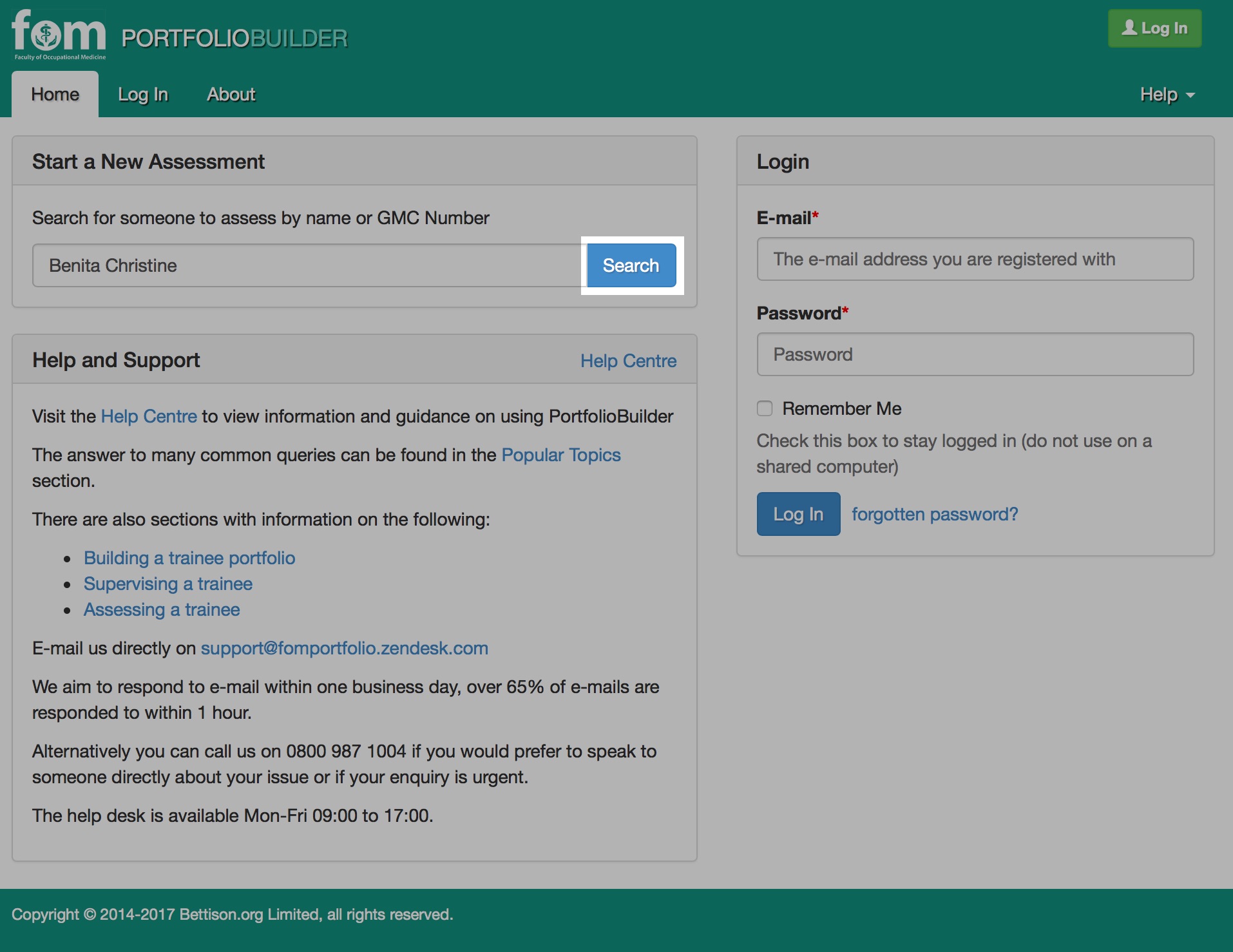
Step 2: Click on 'Search'.
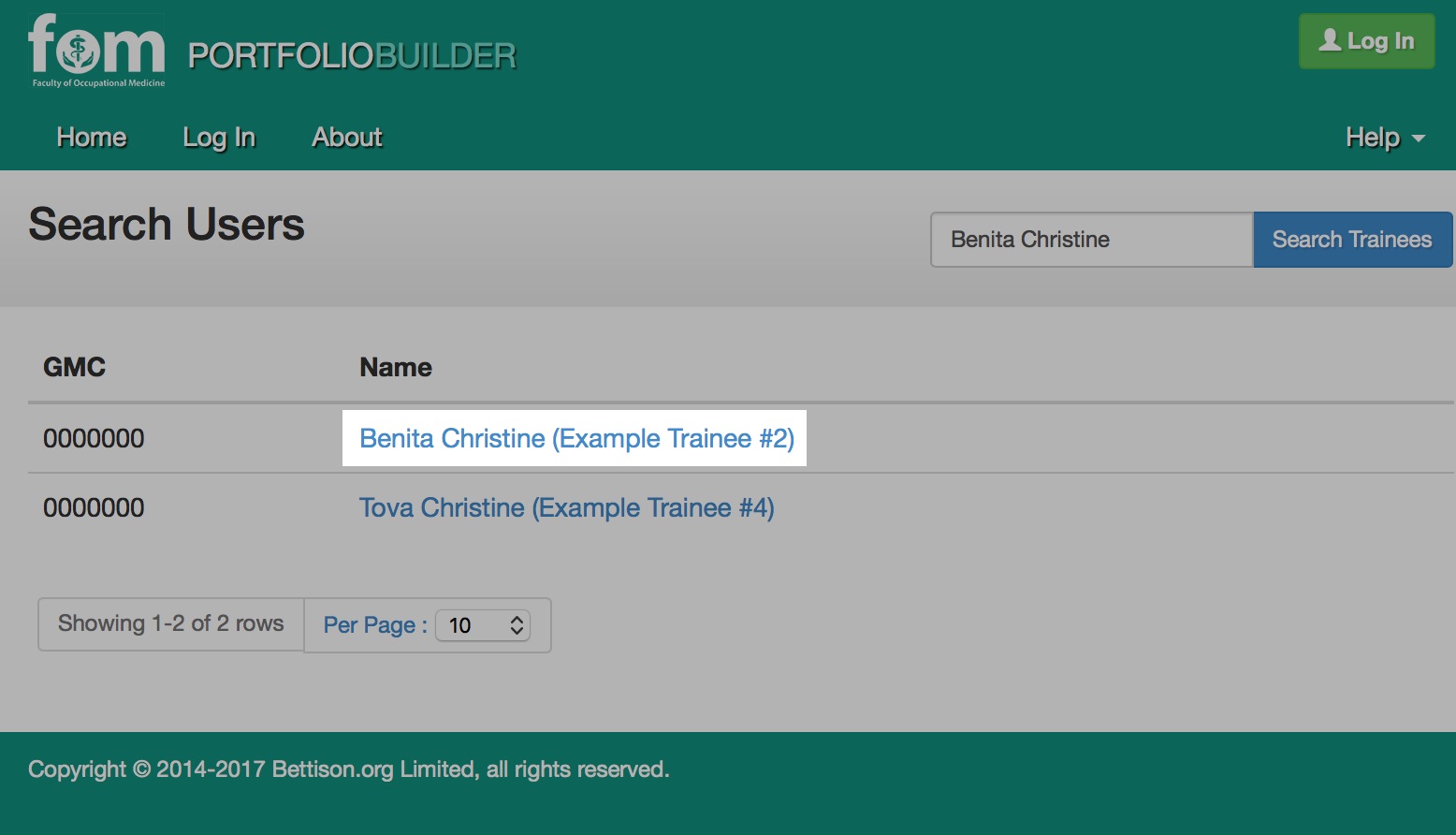
Step 3: Click on the name of the trainee to assess.
Step 4: Click on '+New Assessment'.
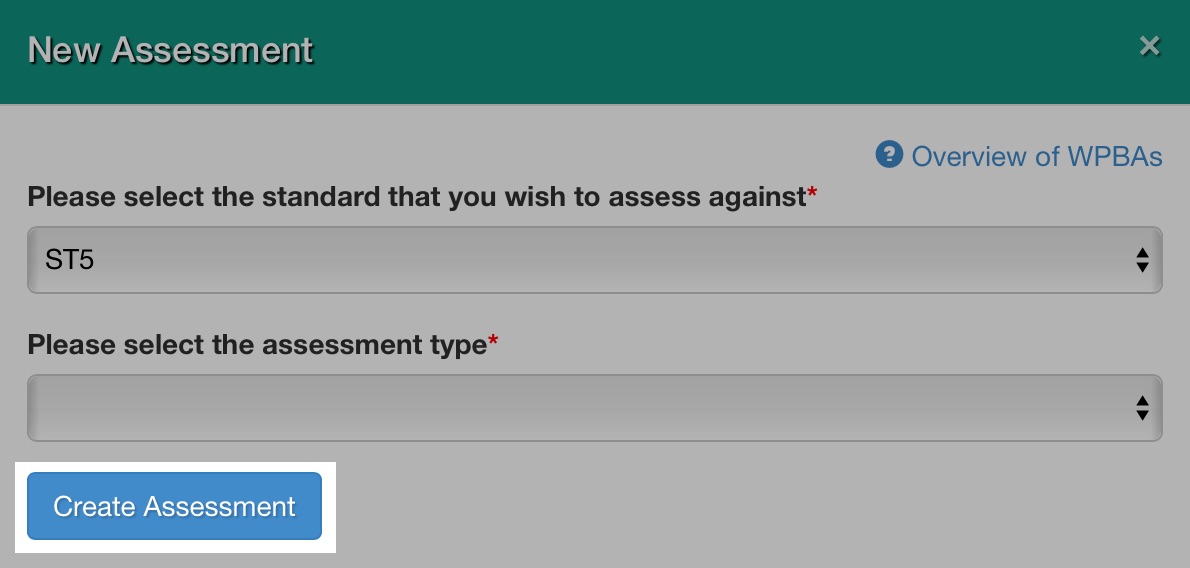
Step 5: Select the standard & type of assessment from the drop-down boxes.
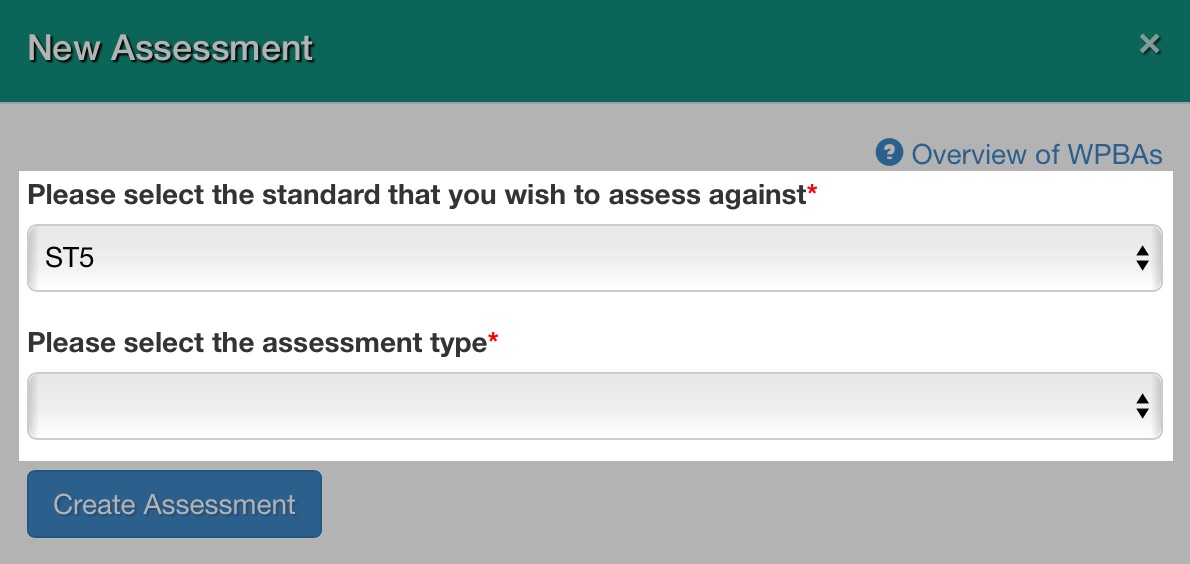
Step 6: Click on 'Create Assessment'.
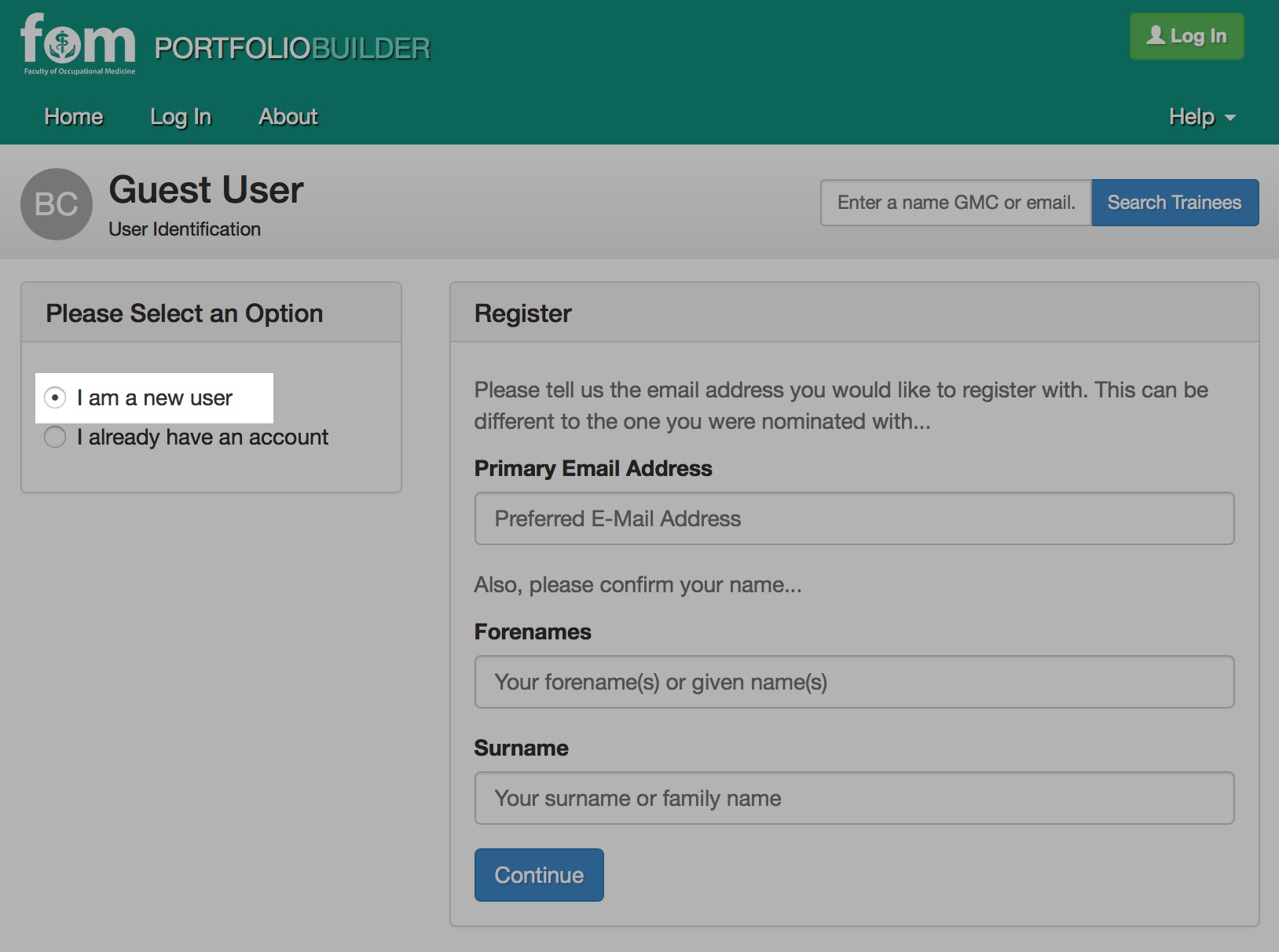
Step 7: Click on 'I am a new user'.
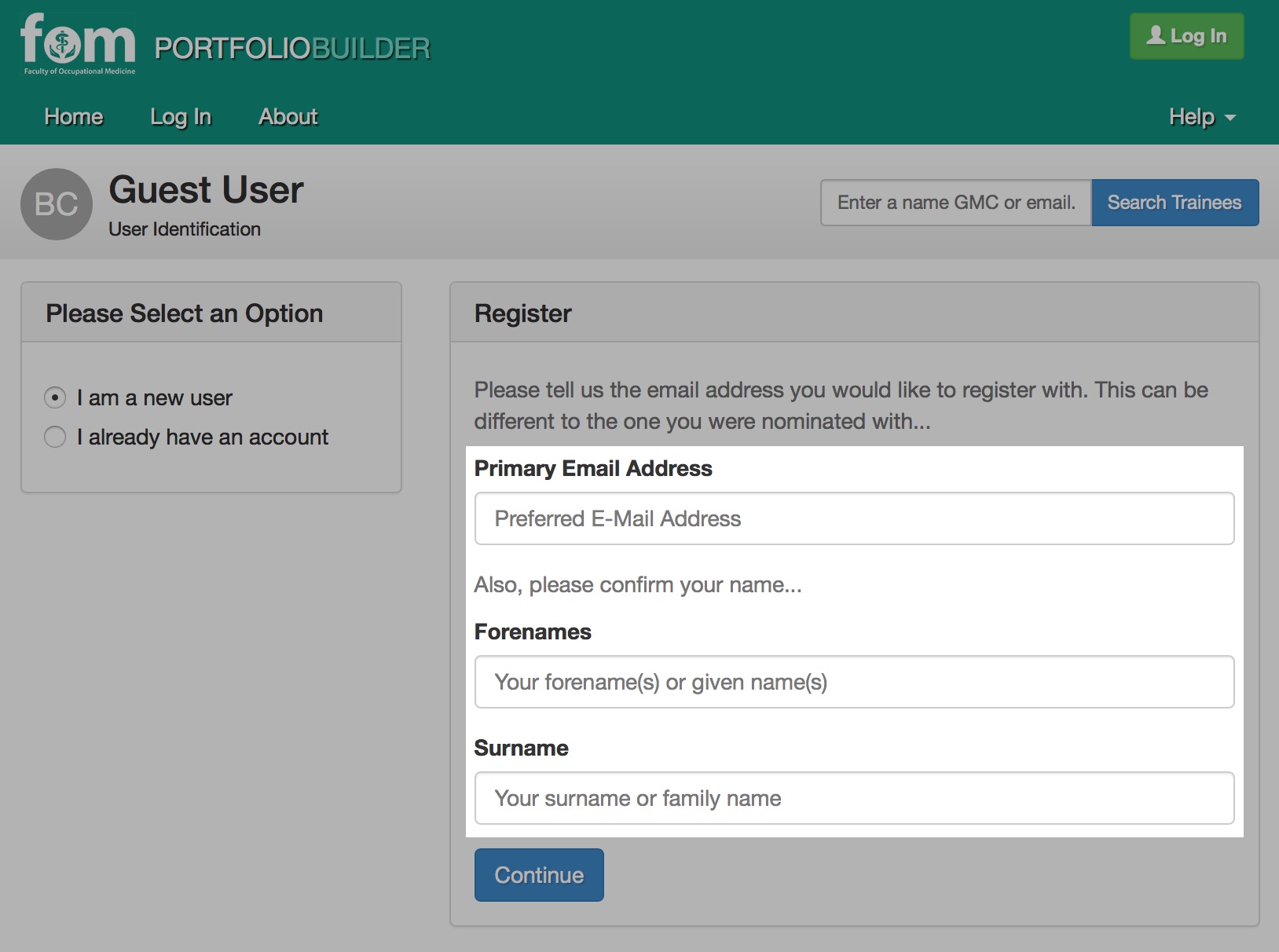
Step 8: Register your details.
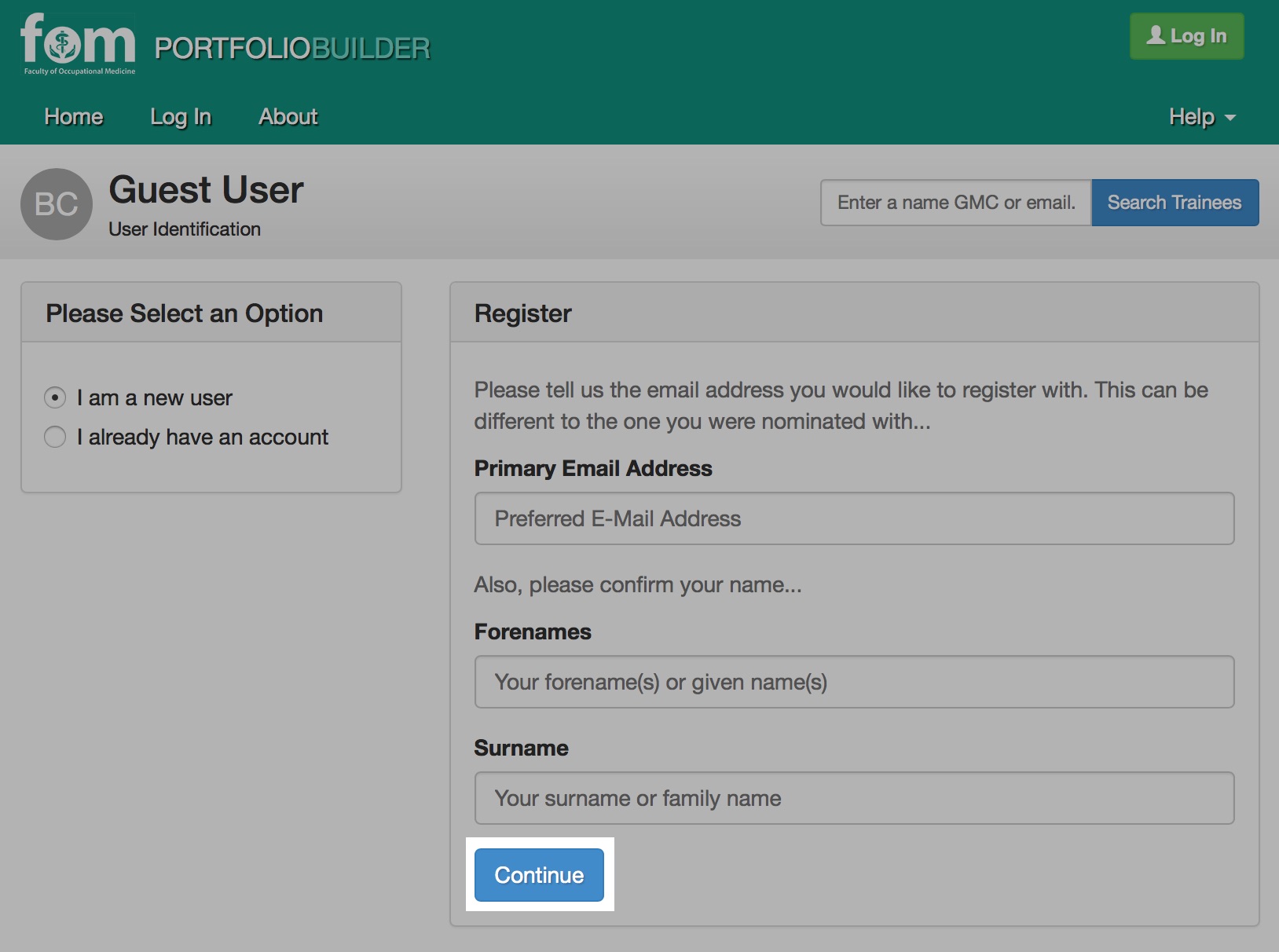
Step 9: Click on 'Continue'.
Step 10: Complete the assessment form.
Step 11: Click on 'Submit'.
If you need any help completing an assessment, please contact the FOM Portfolio Builder Support Team on 0800 987 1004 during working hours, or email support@fomportfolio.zendesk.com.
Comments
0 comments
Article is closed for comments.